How to Download and Install a Whisper GUI on Windows or macOS
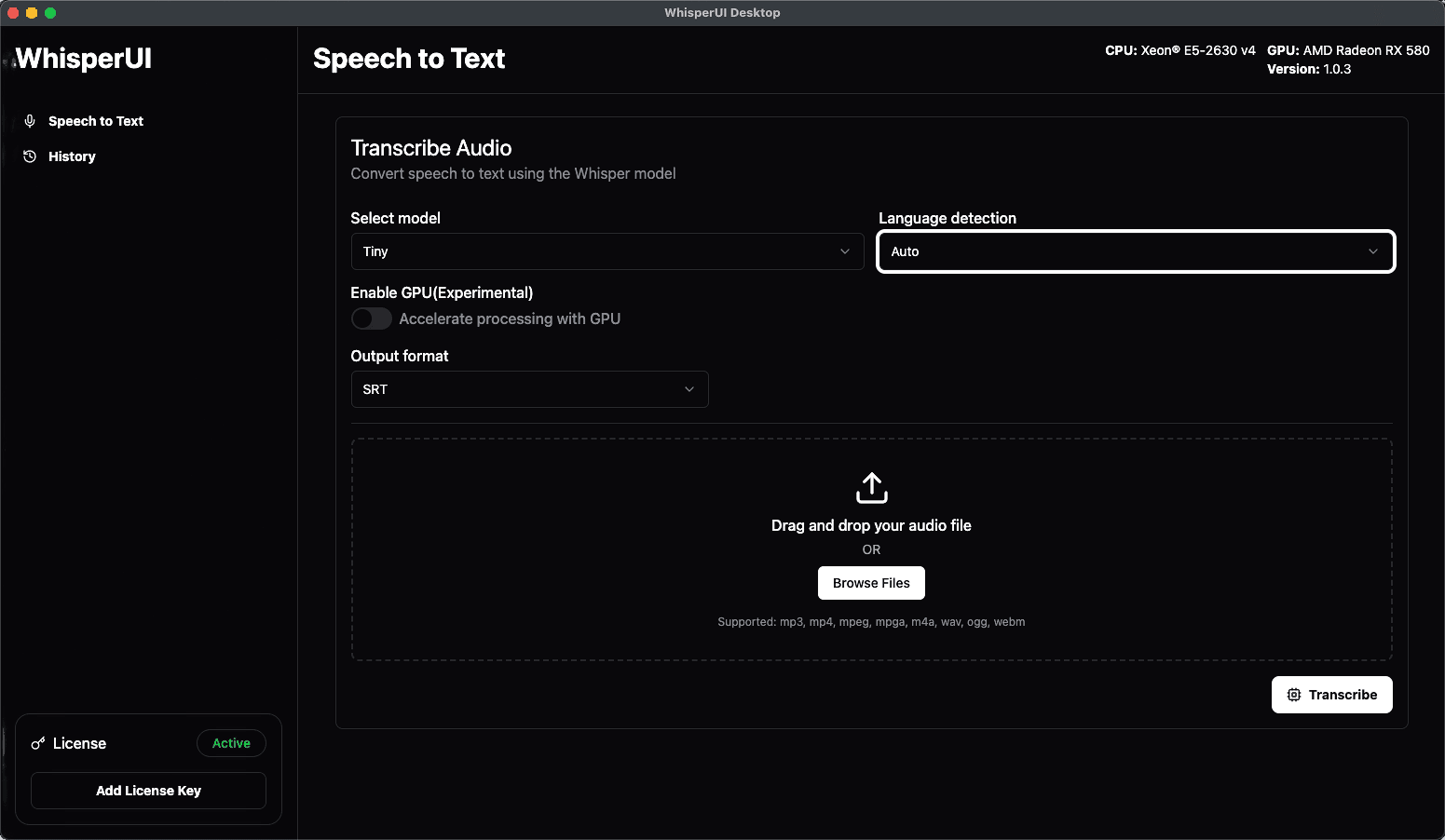
The fastest way to use Whisper on a desktop computer is through a graphical application that packages the transcription workflow into a regular installer. This guide shows how to download the correct Whisper GUI, install it on Windows or macOS, activate your WhisperUI license, and prepare the app for its first local transcription.
WhisperUI Desktop currently supports Windows 10 and 11, Intel Mac, and Apple Silicon Mac. Linux is not supported yet.
Before you download the Whisper GUI
Check these requirements first:
| Requirement | Supported setup |
|---|---|
| Windows | Windows 10 or Windows 11 on x64 hardware |
| Mac | Intel processor or Apple Silicon processor |
| Memory | At least 4 GB of RAM |
| Processing | CPU, with experimental NVIDIA or AMD acceleration where compatible |
| Activation | Three-day trial or active WhisperUI Desktop subscription |
The installer and license are separate parts of the setup. You can download the app from the public releases page, but you need a trial or active subscription to activate it.
Step 1: Start your three-day trial
Go to WhisperUI Desktop pricing and choose a plan. Both plans include desktop access, unlimited local transcription, and optional cloud processing. The plan differences relate mainly to cloud, meeting, and team allowances.
Starting the trial before installation means your license key will be ready when you open the desktop app.
Step 2: Choose the correct installer
Open the WhisperUI Desktop releases page. The current release provides three installer choices:
- Windows x64 for Windows 10 or Windows 11.
- Mac Apple Silicon for Mac computers with an Apple M-series chip.
- Mac Intel x64 for Mac computers with an Intel processor.
Do not use an old direct download URL from an article or saved message. The releases page is the canonical location for the current installer.
How to identify your Mac processor
- Open the Apple menu.
- Select About This Mac.
- Look for the field labeled Chip or Processor.
- Choose Apple Silicon if the value starts with Apple M. Choose Intel if it names an Intel processor.
Installing the wrong Mac build normally means the app will not open correctly or will not match the computer architecture. Downloading the correct build avoids that problem before it starts.
Step 3: Install the Whisper GUI on Windows
- Download the Windows x64 setup file from the releases page.
- Open the downloaded installer.
- Follow the Windows setup prompts.
- Launch WhisperUI Desktop after installation.
- If Windows shows a security prompt, confirm that the installer came from the official
whisperui.comreleases page before continuing.
The Windows app does not require an NVIDIA GPU. Start with CPU processing so you can confirm the installation and license first. Compatible computers can evaluate experimental NVIDIA or AMD acceleration afterward.
For more platform detail, see Whisper GUI for Windows and the Windows desktop transcription guide.
Step 4: Install the Whisper GUI on Mac
- Download the Apple Silicon or Intel disk image that matches your Mac.
- Open the downloaded
.dmgfile. - Move the application into the Applications folder when prompted.
- Open WhisperUI Desktop from Applications.
- Review any macOS security prompt and confirm that you downloaded the app from the WhisperUI releases page.
If the app does not open, check the processor type again. Intel and Apple Silicon use different downloads.
The Whisper GUI for Mac page explains the Mac workflow, while the Mac transcription guide covers local versus cloud processing in more detail.
Step 5: Activate your desktop license
After installation, sign in to your WhisperUI account in the browser and locate the desktop license area. Copy the license key and paste it into WhisperUI Desktop.
Each license supports one active device at a time. If you move to another computer, manage the registered device from your account before activating the new installation.
If activation fails:
- Confirm that the trial or subscription is active.
- Copy the entire key without leading or trailing spaces.
- Check that the computer can reach the WhisperUI service during activation.
- Confirm that the license is not already registered to a different device.
- Sign in to the same account that owns the desktop plan.
Step 6: Run the first local transcription
Once the app is activated:
- Open the desktop transcription workflow.
- Choose a recording from the computer.
- Select local processing.
- Start with CPU processing for the first job.
- Begin the transcription and keep the app open while it runs.
The time required depends on the computer, available resources, recording length, and workload. Avoid relying on a generic speed estimate because two computers can process the same file at very different rates.
Step 7: Decide whether to use local or cloud processing
Use local processing when you want the job to run on the computer, need unlimited desktop transcription, or do not want to upload a large recording.
Use cloud processing when you prefer not to use local CPU or GPU resources, or when the current computer is not well suited to the job. Cloud processing follows the allowance included with the selected plan.
Both modes are available in the broader WhisperUI workflow, so you can decide file by file.
Optional: try GPU processing on Windows
After CPU processing works correctly, compatible Windows computers can evaluate experimental NVIDIA or AMD acceleration.
GPU support should be treated as an optimization, not an installation requirement. If a GPU mode fails or behaves inconsistently, switch back to CPU processing and confirm that the base workflow still succeeds. The NVIDIA GPU setup guide covers this process in more detail.
Common installation problems
The Mac app will not open
Verify whether the computer uses Intel or Apple Silicon and download the matching installer. Also confirm that the disk image finished downloading before opening it.
Windows blocks or warns about the installer
Confirm the download source and filename before continuing. Always get the installer through the WhisperUI releases page rather than an unknown mirror.
The license key is rejected
Check subscription status, whitespace around the copied key, account ownership, and whether the license is registered to another device.
Local transcription is slow
Processing speed depends on hardware and workload. Close other resource-heavy applications, confirm that the computer has sufficient free memory, and test a shorter recording. Use CPU as the compatibility baseline before troubleshooting experimental GPU acceleration.
There is no Linux installer
WhisperUI Desktop does not currently support Linux. Do not download a file that claims to be an official WhisperUI Linux build. Use the web app or a supported Windows or Mac computer until a Linux release is announced.
Keep the app current
Return to the desktop releases page when you need the current installer or want to review release history. Editorial guides intentionally avoid hard-coding the latest version number because the releases page is the maintained source for downloads.
Start with a supported, repeatable setup
The reliable order is simple: start the trial, choose the correct installer, activate the license, verify CPU processing, and then evaluate optional acceleration. That sequence separates installation issues from hardware-specific optimization and makes troubleshooting much easier.