Whisper GUI for Mac: Local Transcription on Apple Silicon and Intel
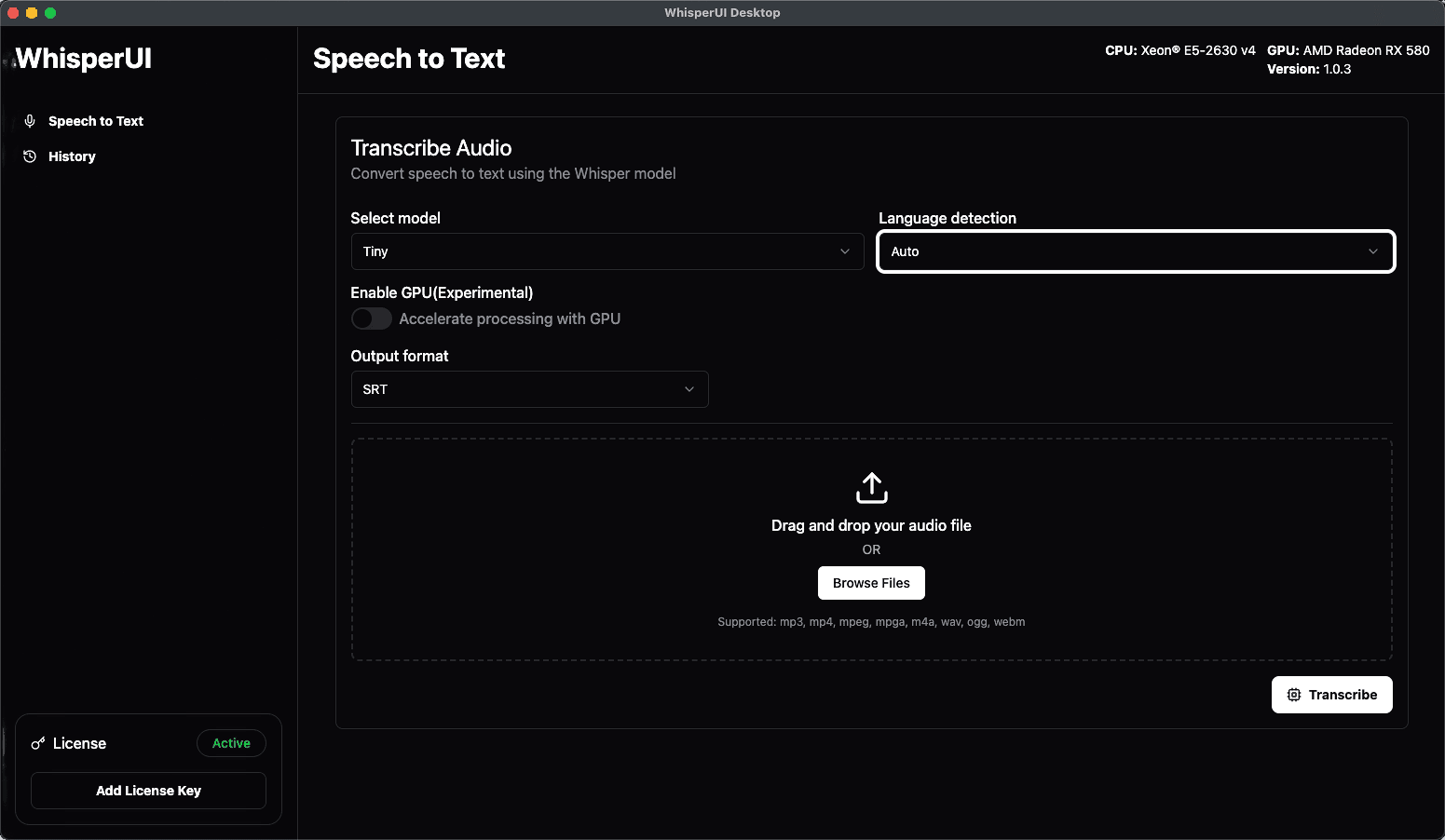
A Whisper GUI for Mac gives you a visual desktop workflow for speech-to-text without asking you to build and maintain a command-line environment. WhisperUI Desktop supports both Apple Silicon and Intel Mac computers, unlimited local transcription during an active subscription, and optional cloud processing.
The important first step is choosing the installer that matches your processor. This guide explains that choice, the installation and license flow, when to process locally, and how the Mac desktop app differs from a browser-only workflow.
Why use a Whisper GUI on macOS?
Open-source speech-to-text tools are often introduced through terminal commands. That approach gives developers low-level control, but it can add friction when transcription is the actual job you need to finish.
A Mac desktop GUI packages the recurring steps into an application. You install it once, activate the license, choose a recording, and manage processing from a visual interface.
This approach is useful when:
- You transcribe interviews, lectures, podcasts, or meetings regularly.
- You prefer processing a recording on the Mac instead of uploading it.
- Files are long or inconvenient to transfer through a browser.
- You want unlimited local transcription while the desktop subscription is active.
- You sometimes need local processing and sometimes prefer the cloud.
Apple Silicon or Intel: choose the correct Mac installer
WhisperUI provides separate builds for the two Mac processor families.
| Mac type | What you will see | Installer to choose |
|---|---|---|
| Apple Silicon | Apple M-series chip | Mac Apple Silicon |
| Intel | Intel processor name | Mac Intel x64 |
To identify the processor:
- Open the Apple menu.
- Choose About This Mac.
- Find Chip or Processor.
- Select the Apple Silicon download for an Apple M-series chip, or the Intel x64 download for an Intel processor.
Using the correct build matters because the application must match the computer architecture. The Whisper GUI download page lists both current installers.
Mac requirements
WhisperUI Desktop requires:
- A supported Mac with Intel or Apple Silicon hardware.
- At least 4 GB of RAM.
- A three-day trial or active desktop subscription for the license.
- Enough local storage and available resources for the recordings you plan to process.
Processing time depends on the Mac, workload, recording duration, and resources used by other applications. Avoid treating a speed result from another computer as a promise for your own hardware.
What WhisperUI Desktop provides on Mac
Visual desktop workflow
The installed app replaces terminal commands with a regular Mac interface for selecting and processing recordings.
Unlimited local transcription
Local desktop jobs are unlimited during an active subscription. Because the transcription runs on the Mac, local jobs do not consume the plan's cloud transcription allowance.
Optional cloud processing
Cloud processing remains available when you want to avoid using the Mac's local resources or when upload convenience matters more for a particular recording.
One workflow for repeat jobs
The desktop interface is designed for people who return to transcription. You can use the same app for a series of interviews, podcast episodes, lectures, research sessions, or other long-form recordings.
How to install the Whisper GUI on Mac
1. Start the three-day trial
Open the Whisper GUI for Mac page and choose a desktop plan. Starting the trial creates the license key needed inside the app.
2. Download the matching disk image
Use the desktop releases page and select Mac Apple Silicon or Mac Intel x64. Check About This Mac first if you are unsure which one applies.
3. Install the app
Open the downloaded disk image and move WhisperUI Desktop into the Applications folder when prompted. Launch it from Applications after the copy completes.
4. Activate your license
Copy the desktop license key from your WhisperUI account and paste it into the app. Each license supports one active device at a time.
5. Test a short local job
Choose a short recording and use local processing. A smaller first test helps confirm installation, activation, file access, and processing before you move to a long recording.
For a step-by-step platform comparison, read How to Download and Install a Whisper GUI.
Local processing vs cloud processing on Mac
Choose local processing when:
- You want the job to run on the Mac.
- The recording is large or long.
- Uploading would be inconvenient.
- You have recurring work and want unlimited local transcription.
- You want performance to depend on your own Mac rather than a browser upload.
Choose cloud processing when:
- You want to preserve local computer resources for other applications.
- The current Mac has limited available performance.
- The recording is convenient to upload.
- You want to use the cloud allowance included with the plan.
The best choice can change from one file to the next. Local and cloud processing are options within the same WhisperUI account rather than separate products.
Apple Silicon and Intel workflows
Apple Silicon Mac
Choose the native Apple Silicon installer. Apple M-series computers use a different architecture from Intel models, so the matching build is the cleanest installation path.
The actual processing time still varies across M-series generations, available memory, background applications, and workload. Test with your own files instead of relying on a generic performance claim.
Intel Mac
Choose the Intel x64 installer. Intel Mac computers remain supported, but older machines may take longer on demanding local jobs. Close resource-heavy applications, begin with a short file, and use cloud processing when the computer is not a good fit for the workload.
Mac use cases
Interview transcription
Researchers, journalists, recruiters, and consultants can process interview recordings on the Mac where the files are already stored.
Podcast production
Podcast editors can keep recurring transcription work on the production computer and avoid uploading every long raw recording.
Lectures and study material
Students and educators can turn recorded classes and seminars into text through a repeatable desktop workflow.
Team workflows
Mac-first teams can use local processing for suitable recordings and cloud processing when a different computer or workload makes it more practical.
Troubleshooting on Mac
The app will not open
Confirm that the installer matches the processor. Apple Silicon and Intel builds are different. Download the correct disk image again from the releases page if necessary.
macOS displays a security prompt
Verify that the app was downloaded from whisperui.com/desktop/releases before continuing. Do not use an installer from an unknown mirror.
The license does not activate
Check that the trial or subscription is active, copy the complete key without extra spaces, and confirm that the license is not registered to another computer.
Local processing uses too many resources
Close other demanding applications, test a shorter recording, or use cloud processing. Local performance is limited by the resources available on the Mac at that moment.
The wrong installer was downloaded
Delete the incorrect disk image, check About This Mac, and download the build that matches the processor.
Whisper GUI, web app, or terminal?
| Workflow | Good fit | Tradeoff |
|---|---|---|
| Mac desktop GUI | Recurring local transcription through a visual app | Uses the Mac's resources for local jobs |
| WhisperUI Web | Quick browser access and cloud processing | Requires an upload |
| Command line | Developers who want to manage their own environment | More setup and ongoing maintenance |
The desktop GUI is intended for people who want local processing and a regular Mac application without owning the technical maintenance of the command-line path.
Is WhisperUI an official OpenAI Mac app?
No. WhisperUI is an independent transcription product. It provides its own web and desktop interfaces and is not an official OpenAI application.
Start with the correct Mac build
Check the processor, start the trial, install the matching build, activate the license, and verify a short local transcription. That order avoids the most common setup mistake and gives you a dependable baseline before processing larger recordings.