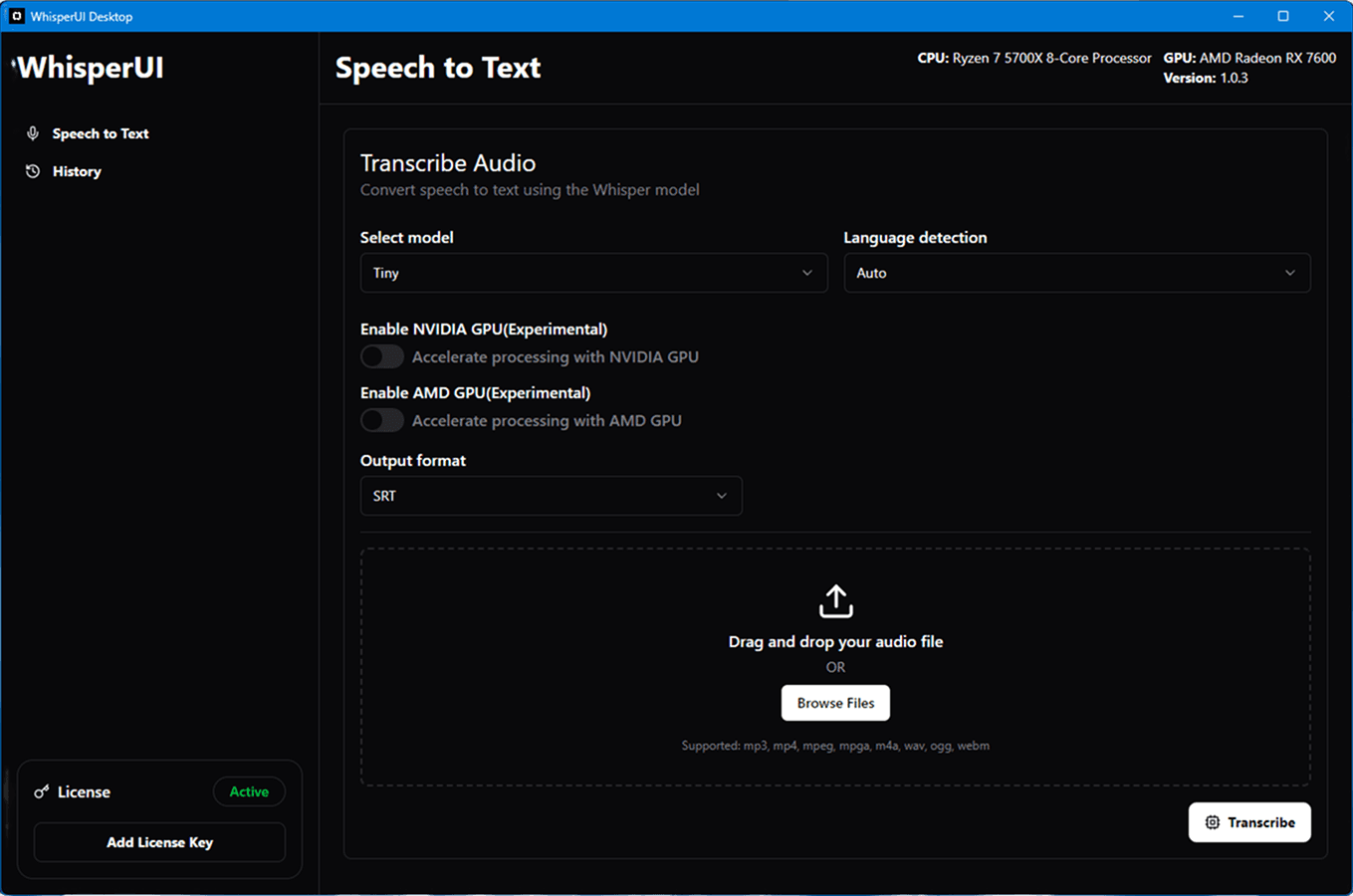
Whisper GUI for Windows: Local Speech-to-Text with WhisperUI
A Whisper GUI for Windows lets you transcribe recordings through a desktop interface instead of configuring a command-line environment. WhisperUI Desktop supports Windows 10 and Windows 11, local CPU processing, optional cloud processing, and experimental NVIDIA or AMD acceleration on compatible hardware.
This guide explains the Windows requirements, how the desktop workflow operates, when local processing is useful, and how to start without mixing installation issues with optional GPU configuration.
Why use a Whisper GUI on Windows?
Running speech-to-text from a command prompt can be a good fit for developers, but it creates unnecessary friction for many everyday transcription jobs. You may need to install dependencies, manage model files, remember commands, and troubleshoot changes in the environment.
A GUI packages the workflow into a regular Windows application. You select files and processing options from the interface, see progress in the app, and return to the same setup for the next recording.
That is especially useful for:
- Researchers and journalists with recurring interviews.
- Podcast and video teams working with long raw recordings.
- Students and educators processing lectures or seminars.
- Teams that want local transcription and an optional cloud route in one product.
- People who want to use Whisper without maintaining Python or terminal commands.
Windows system requirements
| Component | Requirement or option |
|---|---|
| Operating system | Windows 10 or Windows 11 |
| Architecture | Windows x64 |
| Memory | Minimum 4 GB of RAM |
| Default processing | CPU |
| Optional acceleration | Experimental NVIDIA or AMD GPU support on compatible systems |
| Activation | Three-day trial or active WhisperUI Desktop subscription |
A dedicated GPU is not required. CPU processing is the correct starting point because it provides a compatibility baseline before you enable experimental acceleration.
What the Windows desktop app provides
A visual transcription workflow
WhisperUI Desktop is an installed application, not a collection of scripts. The interface is intended to make file selection, processing choice, job progress, and transcript review easier to manage.
Unlimited local transcription
Local desktop jobs are unlimited while the subscription is active. They do not consume the cloud transcription allowance because the processing runs on the Windows computer.
Local handling for long recordings
Local processing avoids the upload stage and the tighter file constraints associated with browser-only workflows. The practical limit depends on the computer's available storage, memory, and processing resources.
Optional cloud processing
Cloud processing is included when you want to avoid using local hardware or prefer an upload-based workflow. The available cloud allowance depends on the selected plan.
CPU and experimental GPU options
CPU processing works without a dedicated graphics card. Compatible Windows systems can also try experimental NVIDIA or AMD acceleration. Hardware acceleration should be evaluated after the base CPU workflow works correctly.
How to install WhisperUI on Windows
1. Start a trial or subscription
Open the Whisper GUI for Windows page and choose a plan. The three-day trial creates the license you will use inside the installed application.
2. Download the Windows installer
Visit the desktop releases page and choose Windows x64. Use this page as the source of truth for the current installer rather than following an old version-specific link.
3. Complete Windows setup
Open the setup file and follow the installation prompts. If Windows displays a security message, confirm that the installer came from the WhisperUI releases page before continuing.
4. Activate the app
Copy the desktop license key from your WhisperUI account and paste it into the application. A license can be active on one device at a time.
5. Verify a CPU transcription
Choose a short recording and start with local CPU processing. This confirms that installation, licensing, file access, and the base processing workflow all work before you introduce GPU-specific variables.
For a more detailed walkthrough, use the Whisper GUI download and installation guide.
Local processing vs cloud processing on Windows
Choose local processing when:
- The recording should be processed on the Windows computer.
- Uploading a large file would be inconvenient.
- You have frequent jobs and want unlimited local use.
- You want processing performance to scale with your own hardware.
- Internet availability is limited.
Choose cloud processing when:
- You do not want to use local CPU or GPU resources.
- The current Windows computer has limited available performance.
- Uploading the file is convenient for the task.
- You want to use the cloud allowance included with your plan.
The modes are complementary. A laptop may use the cloud for one job, while a more powerful workstation handles the next recording locally.
Using NVIDIA or AMD acceleration
WhisperUI lists NVIDIA and AMD GPU support as experimental. That means results can vary across hardware and driver combinations.
Use this sequence:
- Confirm that CPU processing completes successfully.
- Update the graphics driver through the hardware vendor's supported method.
- Close other applications that are using significant GPU memory.
- Enable the compatible acceleration option in the desktop app.
- Test with a short recording before processing a long file.
- Return to CPU processing if the GPU path fails or behaves inconsistently.
Do not assume a universal speed improvement. Recording length, workload, processor generation, available memory, and background applications all influence performance. The NVIDIA GPU setup guide provides a focused troubleshooting path.
Practical Windows transcription workflows
Interviews and research
Local processing is useful when recordings contain unpublished research, source conversations, or other material you prefer to handle on the same computer.
Podcasts and long-form media
Desktop processing removes the upload step from repeated editing cycles. This is helpful when the raw recording is already stored on the Windows production computer.
Lectures and seminars
Students and educators can use one repeatable app for classes, presentations, and study recordings rather than preparing a new technical environment for each file.
Team transcription
Teams can use desktop processing for local workloads and cloud features for jobs that need a different balance of convenience and hardware use.
Whisper GUI, web app, or command line?
| Option | Choose it when | Consideration |
|---|---|---|
| Windows GUI | You want an installed visual app and recurring local transcription | Local speed depends on your computer |
| WhisperUI Web | You want quick browser access and cloud processing | The recording must be uploaded |
| Command line | You want to manage the entire technical environment yourself | Requires more setup and maintenance |
The desktop GUI is the middle path: more local control than a browser-only tool, with less setup than maintaining a command-line environment.
Troubleshooting the Windows app
The installer is blocked
Confirm that the setup file came from whisperui.com/desktop/releases. Review the Windows prompt carefully before allowing an application to install.
The license does not activate
Check the subscription status, remove spaces around the copied key, verify that you are using the correct account, and confirm that the license is not registered to another device.
Local processing is slower than expected
Close resource-heavy applications, test a shorter recording, and check available memory. Processing time depends on the actual hardware and workload, so avoid comparing the computer to an unrelated benchmark.
GPU processing fails
Switch back to CPU processing. If CPU succeeds, the installation and license are working and the remaining problem is limited to the experimental acceleration path.
Is there a free Windows Whisper GUI?
WhisperUI Desktop includes a three-day trial. Continued use requires an active desktop subscription. The trial is the appropriate way to verify compatibility on your Windows computer before paying.
Is WhisperUI an official OpenAI app?
No. WhisperUI is an independent transcription product with web and desktop interfaces. It is not an official OpenAI Windows application.
Start with the dependable setup
Install the x64 app, activate the trial license, verify CPU processing, and only then test experimental hardware acceleration. This order gives Windows users a clear baseline and makes any later troubleshooting easier to isolate.