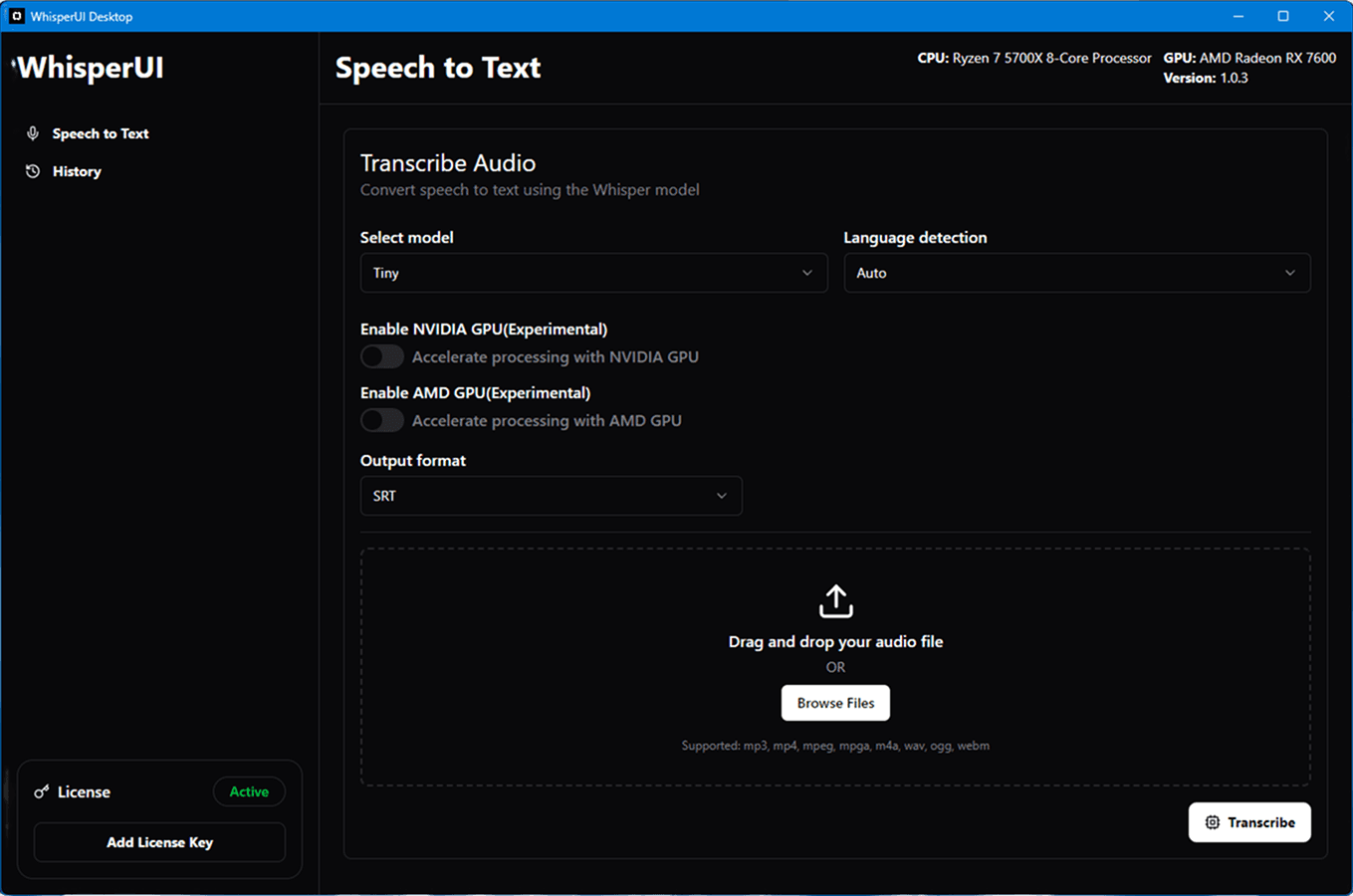
Whisper Desktop GUI: Local Transcription on Windows and Mac
A Whisper desktop GUI gives you a visual way to transcribe audio on your computer without building a command-line environment. Instead of installing Python packages, opening a terminal, and remembering commands, you work through buttons, file selectors, progress indicators, and settings inside a desktop app.
WhisperUI Desktop is designed for that workflow. It supports Windows 10 and 11, macOS on Intel and Apple Silicon, unlimited local transcription while your subscription is active, optional cloud processing, and experimental NVIDIA or AMD acceleration on compatible hardware.
This guide explains what a Whisper GUI is, how desktop processing differs from a web app, and how to decide which workflow fits your recordings.
What is a Whisper desktop GUI?
GUI means graphical user interface. In practical terms, a Whisper GUI turns the technical parts of speech-to-text processing into a regular desktop application.
A command-line workflow can be flexible, but it normally asks you to manage software dependencies, model files, commands, and updates yourself. A desktop GUI packages those steps into an interface intended for repeated use.
With a desktop transcription app, the typical workflow is:
- Install the application for your operating system.
- Activate the app with your license.
- Choose the recording you want to transcribe.
- Select local or cloud processing.
- Start the job and review the result in the application.
That makes a GUI useful for people who want the benefits of desktop transcription without maintaining a developer toolchain.
Whisper GUI vs command line vs web transcription
These approaches can all produce a transcript, but they optimize for different needs.
| Workflow | Best for | Main tradeoff |
|---|---|---|
| Desktop GUI | Recurring local work, large files, privacy-sensitive recordings, and users who prefer a visual app | Performance depends on your computer when processing locally |
| Command line | Developers who want low-level control and are comfortable maintaining their own environment | More setup, commands, dependencies, and troubleshooting |
| Web app | Quick access from a browser and convenient cloud processing | Requires uploading the recording and follows web plan limits |
WhisperUI connects the desktop and web approaches. You can run locally when file handling and desktop control matter, then choose cloud processing when convenience is more important.
Why use a Whisper GUI on your desktop?
Avoid command-line setup
A visual app removes the need to assemble the basic transcription environment yourself. You install WhisperUI Desktop like a normal application and manage work from the interface.
Process recordings locally
Local processing runs the transcription on your computer. This is useful when you do not want to upload a recording or when your workflow includes long files that would be inconvenient to transfer first.
Local processing also removes the browser upload ceiling from the transcription step. Your practical limit becomes the storage, memory, and processing power available on your own machine.
Handle recurring workloads
A desktop app makes the most sense when transcription is not a one-time task. Podcast producers, researchers, journalists, students, educators, and teams often return to the same workflow every week.
Unlimited local transcription is especially relevant in those cases because recurring work does not consume cloud minutes when it runs on the computer.
Use the hardware you already have
WhisperUI Desktop can process work using the CPU. A dedicated GPU is not required. Compatible Windows computers can also try experimental NVIDIA or AMD acceleration.
GPU processing can be useful for heavier workloads, but there is no single speed promise that applies to every computer. Processor model, available memory, recording length, and the selected workload all affect processing time. Keep CPU processing available as the dependable fallback.
Windows and Mac support
WhisperUI provides separate installers for the supported desktop platforms.
Whisper GUI for Windows
The Whisper GUI for Windows supports Windows 10 and Windows 11 on x64 computers. It can run local jobs on the CPU and offers experimental NVIDIA and AMD acceleration on compatible systems.
Windows users should choose the Windows x64 installer from the desktop releases page. If you want a detailed platform walkthrough, read the complete Windows transcription guide.
Whisper GUI for Mac
The Whisper GUI for Mac supports both Intel processors and Apple Silicon. Because the installers are different, check your Mac processor before downloading.
Choose About This Mac from the Apple menu. If the processor or chip shows Apple M-series hardware, use the Apple Silicon installer. If it shows Intel, use the Intel x64 installer.
Local processing or cloud processing?
The right processing mode depends on the recording and the situation.
Choose local processing when:
- You want the transcription job to run on your computer.
- The recording is large or long.
- You have recurring work and want unlimited local jobs.
- You want to use your own CPU or compatible GPU.
- Your internet connection is slow or unreliable.
Choose cloud processing when:
- You want to avoid using local CPU or GPU resources.
- Upload convenience matters more than local handling.
- You are working from a computer that is not well suited to a heavier local job.
- You want to use the cloud allowance included with your plan.
You do not need to commit permanently to one mode. The value of a combined desktop workflow is being able to choose based on the file and computer in front of you.
How to get started with WhisperUI Desktop
1. Start the three-day trial
Open the WhisperUI Desktop plans and choose the plan that matches your expected cloud and team usage. Both plans include the desktop application and local processing.
2. Download the correct installer
Visit the Whisper GUI download page and choose Windows x64, Mac Apple Silicon, or Mac Intel. The installation guide explains how to identify the correct platform.
3. Install and activate the app
Complete the operating-system installation, open WhisperUI Desktop, and paste the license key from your WhisperUI account. A desktop license can be active on one device at a time.
4. Choose a recording and processing mode
Select the file you want to transcribe. Use local processing when you want the job to run on your computer, or choose cloud processing when it better fits the situation.
5. Start with CPU processing
CPU processing provides a useful compatibility baseline. Once the app is working correctly, Windows users with compatible hardware can evaluate experimental NVIDIA GPU processing or AMD acceleration.
Who should use a Whisper desktop app?
Journalists and researchers
Recorded interviews can contain sensitive or unpublished material. A local desktop workflow gives the user direct control over where the transcription job runs.
Podcast and video teams
Long raw recordings and repeated production cycles can make browser uploads inconvenient. Desktop processing is a better fit when the work stays on the same editing computer.
Students and educators
Lectures, seminars, and research recordings can be processed into searchable text without turning every file into a separate cloud upload.
Teams with mixed workflows
Some recordings are best handled locally; others are easier to process in the cloud. WhisperUI keeps both choices under one account and subscription.
What to check before downloading
- Confirm that the computer runs Windows 10, Windows 11, or a supported version of macOS.
- Make sure at least 4 GB of RAM is available.
- Identify whether a Mac uses Intel or Apple Silicon.
- Treat GPU acceleration as experimental and keep CPU processing available.
- Start the trial so you have a license key ready for activation.
- Use the current installer listed on the releases page instead of relying on an old direct link.
Is WhisperUI an official OpenAI application?
No. WhisperUI is an independent transcription product that provides web and desktop interfaces for speech-to-text workflows. It should not be confused with an official OpenAI desktop application.
Is a Linux Whisper GUI available?
WhisperUI Desktop currently supports Windows and macOS. A Linux version is planned, but there is no WhisperUI Linux installer available today.
Choose the workflow that matches the job
A Whisper desktop GUI is most valuable when you want local control without the maintenance work of a command-line environment. It gives you a repeatable interface, unlimited local transcription, and the option to use cloud processing when that is more practical.